For the complete documentation index, see llms.txt. This page is also available as Markdown.

Dimension Overlay

Configure the Dimension Overlay in Mimeeq — covering global settings, product-level overrides, custom point-to-point measurements, and dimension rules for standard and modular products.

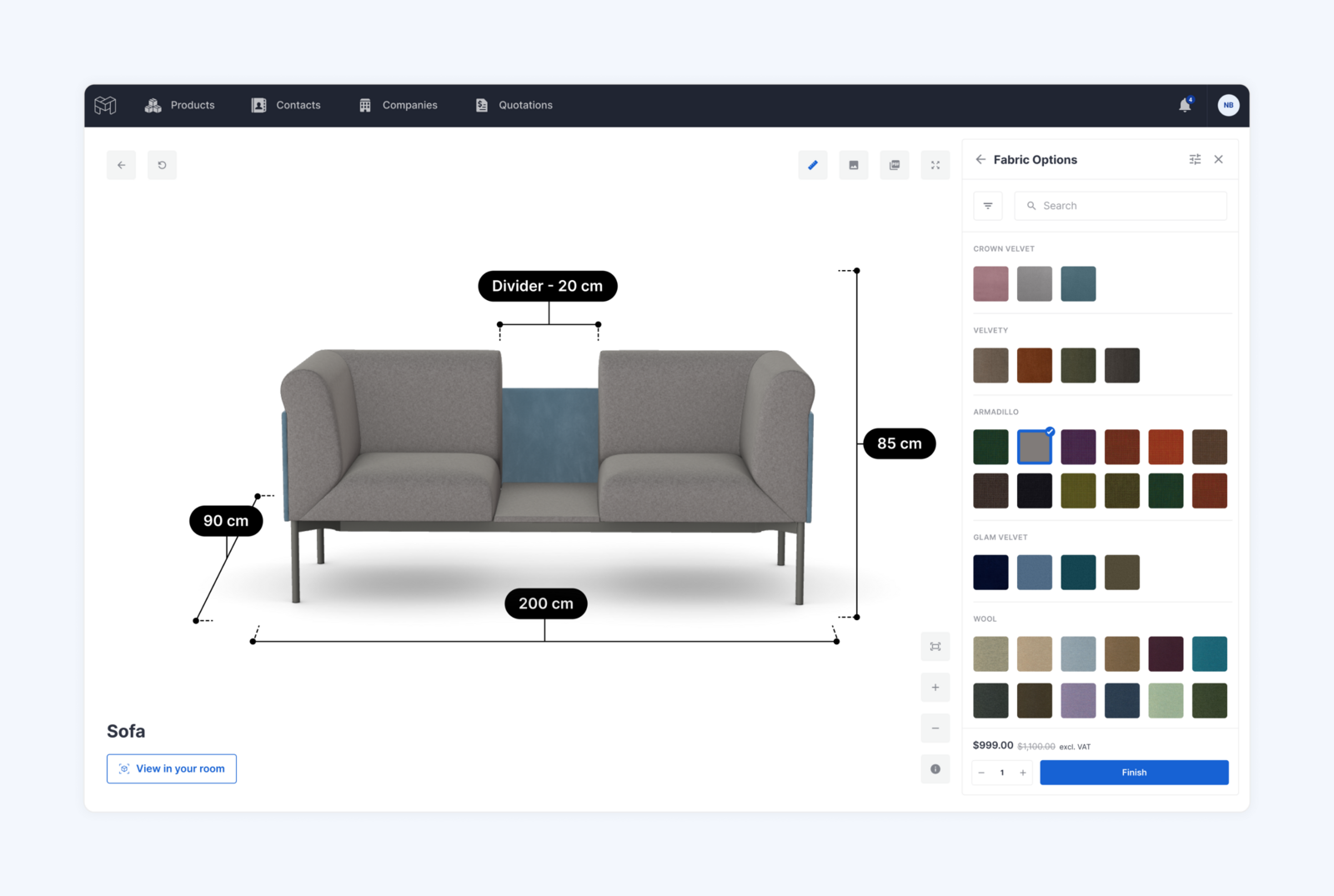
The Dimension Overlay renders interactive dimension lines directly on 3D product models inside the Mimeeq Configurator, displaying width, height, and depth as floating lines with pill-shaped labels. You can style dimension lines and labels to match your brand, configure display units per market, override dimension values globally or per product option, add custom point-to-point measurements, and control everything dynamically through the Rules system.

Settings are split across two levels: Global (defaults across all products) and Local (per product overrides).

Dimensions Display in Mimeeq

Global Settings

Global settings define the default appearance and behavior of dimensions across all your products. Any product that hasn't been configured locally will automatically inherit these settings. To access global dimension settings, navigate to Settings → Global Template → Dimensions.

Global Dimensions Settings

Dimension Visibility

This section controls which dimension lines are shown by default and how they behave when the camera moves.

Setting
Description

Show Width Dimension

Toggles the width (X axis) dimension line on or off

Show Height Dimension

Toggles the height (Y axis) dimension line on or off

Show Depth Dimension

Toggles the depth (Z axis) dimension line on or off

Lock Dimension Position

Controls whether dimension lines follow the camera or stay fixed

Display Height on Opposite Side

Places the height dimension on the opposite side from the depth dimension

Lock Dimension Position controls whether dimension lines stay fixed or follow the camera as the user orbits around the product. When set to Yes, the dimension lines are locked to a fixed position in 3D canvas and do not reposition as the camera moves. When set to No, dimension lines automatically reposition to always face the camera during orbit, keeping them clearly readable from any angle.

Dimension Styling

This section controls the visual appearance of dimension lines and labels.

Setting
Description

Line Color

A color picker to set the color of all dimension lines, extension lines, and endpoint markers.

Line Offset (CM)

The length of the dashed extension lines that project from the product's edge to the dimension line. Default value is 6. Always in centimetres (cm).

Pill Style

A dropdown to control the appearance of dimension labels. Dark / Light / Custom.

Width Label Position

Controls which side of the width dimension line the label pill appears on. Above (default) / Below.

Height Label Position

Controls which side of the height dimension line the label pill appears on. Auto (default) / Left / Right. Auto means the label repositions between left and right as the product is rotated, to avoid overlapping the product. Setting it to Left or Right locks the label to that side regardless of camera angle.

Depth Label Position

Controls which side of the depth dimension line the label pill appears on. Above (default) / Below.

Pill Style has three options:

  • Dark — The label pill has a dark background with light text. This is the default style and works well on light-coloured product backgrounds.

  • Light — The label pill has a light background with dark text. Useful when the product or scene background is dark.

  • Custom — Lets you manually set the pill background color, border color, and text color independently for full control over the look.

Pill Stying Examples

Dimension Units

This section defines which units are available in your configurator and which one is used by default. The units table lists all supported measurement units:

Unit
Decimal Places
Example

Millimetre (mm)

0

1200 mm

Centimetre (cm)

1

120.5 cm

Metre (m)

3

1.205 m

Inch (in)

2

47.24 in

Feet (ft)

2

3.94 ft

Feet + Inch

1

3′ 11.5″

For each unit, you can set the Decimal Places — the number of digits shown after the decimal separator. This is useful when different markets expect different levels of precision (for example, showing centimeters with one decimal place vs. millimeters with no decimals). For example, a precision of 2 displays 120.50 cm; a precision of 0 displays 120 cm.

Use the Default checkbox to select which unit is active by default when a customer opens the configurator. Only one unit can be set as default at a time.


Product-Level Settings (Standard Product)

To control dimensions for a specific standard product, open the product, navigate to the 3D & AR tab, and expand the Dimensions accordion.

Show Dimensions

The first setting is a Show Dimensions dropdown with two options:

  • No — Dimensions are hidden for this product.

  • Yes — Dimensions are visible. Selecting Yes reveals all additional dimension settings described below.

Dimension Source

When Show Dimensions is set to Yes, you can choose where the dimension settings come from using the Dimension Source dropdown:

  • Global Template — The product inherits all dimension settings from the global template. The sections for Dimension Visibility, Dimension Styling, and Dimension Units will be visible but not editable at the product level.

  • Local Settings — All settings become editable, allowing you to override any value from the global template for this product only. This is useful when a specific product needs a different unit, style, or axis visibility than the rest of your catalogue.

Local Dimensions Settings

Position Override

This section lets you control which side of the product each dimension line appears on, relative to the camera.

For each axis — Width, Height, and Depth — you can choose between three options:

Option
Description

Auto

The dimension line automatically repositions to the nearest visible face as the camera orbits. This is the default behaviour and works well in most cases.

Near

The dimension line is always placed on the face closest to the camera, regardless of orbit angle.

Far

The dimension line is always placed on the face furthest from the camera. Useful when you want dimensions to appear in the background rather than in front of the product.

Product-Level Settings (Modular Product)

To control dimensions for a modular product, open the modular product, navigate to Settings, and expand the Dimensions accordion.

Dimension Source

Unlike standard products, modular products do not have a Show Dimensions toggle — dimensions are available by default. You can choose where the dimension settings come from using the Dimension Source dropdown:

  • Global Template — The modular product inherits all dimension settings from the global template, including Dimension Visibility, Dimension Styling, and Dimension Units. These settings are visible but not editable at the product level.

  • Local Settings — All settings become editable, allowing you to override any value from the global template for this modular product only.

Position Override

Position override is available for modular products in the same way as standard products. You can control which side of the product each dimension line (Width, Height, Depth) appears on — Auto, Near, or Far. See the Dimension Position section above for a full description of each option.


Custom Dimensions

Custom dimensions allow you to display point-to-point measurements on a product that go beyond the standard width, height, and depth — for example, the seat width between armrests, or the height of a backrest from the seat cushion.

This is useful when the dimensions your customers actually care about are not the same as the overall bounding box. A sofa might be 200 cm wide overall, but what a buyer really needs to know is the seat width between the armrests, or the height of the backrest from the seat cushion — measurements that a bounding box simply cannot provide.

Custom dimensions are configured per product using the Rules system and are not part of the global template.

How to Set Up Custom Dimensions

  1. Open the product and navigate to the Rules tab.

  2. Click + Add rule and give it a name (e.g. "Custom dimensions").

  3. Click + Add trigger and set Do you want to be triggered by to your preferred trigger — for example, Options if you want custom dimensions to appear only for a specific product configuration, or Always Active if they should always be present.

  4. Click + Add action and set Select action type to Show Custom Dimensions.

  5. Set Select when to run to Always and Select scope to All Devices.

  6. Click Add Dimension to add your first dimension.

For each custom dimension, configure the following fields:

Field
Description

Select Mesh From

The mesh that marks the start point of the measurement.

Select Mesh To

The mesh that marks the end point of the measurement.

Dimension Label

The name displayed before the dimension value on the label. Optional — if left empty, only the measured value is shown. Press { to see suggested metafields.

Label Position

Controls which side of the dimension line the label pill appears on. Auto (default) — places the label above the line for horizontal dimensions and to the left for vertical dimensions. Opposite side — flips the label below the line for horizontal dimensions and to the right for vertical dimensions.

Trigger mode

Controls how this dimension is shown. See below.

Animation

Controls whether the dimension line animates when it appears. None — the line appears instantly. Once per session — the line animates the first time it is shown in a session. Every time shown — the line animates each time it becomes visible.

Trigger mode options:

  • With standard dimensions — the custom dimension is shown and hidden together with the standard dimensions (Width, Height, Depth), triggered by the dimension icon on the canvas. Use this when the custom dimension is always relevant alongside the standard ones.

  • Independently — the custom dimension is hidden by default and must be shown and hidden using separate Show dimension and Hide dimension rule actions. Use this when you want to display a custom dimension only in specific contexts, such as when a user opens a particular option group.

You can add as many custom measurements as needed within a single rule by clicking Add Custom Measurement again for each one. Once you have created all custom dimensions, you can override its displayed value using a separate Override Dimensions rule action — for example, to show a rounded or nominal value instead of the exact measured distance between meshes.

Tip: For best results, consider adding dedicated invisible meshes to your GLB file at the exact points you want to measure between. This gives you precise control over where measurements start and end, rather than relying on the bounding box centres of existing visible meshes.

Custom Measurements Rule Example

Adding labels to standard dimensions

You can add custom text labels to your standard dimension lines (Width, Height, Depth) using the Add Standard Dimension Labels rule action. This is useful when you want to give dimensions more context — for example, displaying Width: 97.3 cm instead of just 97.3 cm.

Note: This action is available at the product level only and cannot be configured in the global template.

How to set it up:

  1. Open the product and navigate to the Rules tab.

  2. Click + Add rule and give it a name (e.g. "Dimension labels").

  3. Click + Add trigger and set your preferred trigger.

  4. Click + Add action and set Select action type to Add Standard Dimension Labels.

  5. Click + Add label to add your first label.

  6. Configure the two fields per row:

Field
Description

Select Dimension

The standard dimension to label: Width, Height, or Depth. Each dimension can only be added once — once selected, it is removed from the dropdown in subsequent rows. When all three dimensions have been added, the Add label button is disabled.

Label

The text to display before the measured value on the dimension pill. Required. Press { to see suggested metafields.

The pill displays as Label: Value — the colon is added automatically. The value shown is either the raw measured dimension or the value set by an active Override Dimensions rule.

How to Override Standard and Custom Dimensions

You can override the displayed value for both standard dimensions (Width, Height, Depth) and custom dimensions using the Override Dimensions rule action. This is useful when a product's nominal size differs from its exact geometry, or when different product configurations require different displayed values.

Override rules can be triggered by any condition available in the Rules system — either Always Active if the override should apply regardless of configuration, or by a specific option or option set if the value changes depending on what the customer selects.

Note: The Override mode is available for standard products only. For modular products, only the Rounded mode is supported.

How to set up an Override Dimensions rule:

  1. Open the product and navigate to the Rules tab.

  2. Click + Add rule and give it a name (e.g. "Dimension overrides").

  3. Click + Add trigger and set Do you want to be triggered by to your preferred trigger — Always Active for a global override, or Options to target a specific size or configuration.

  4. If triggering by options, select the relevant option set and choose the specific option value to trigger on (e.g. 220 cm).

  5. Click + Add action and set Select action type to Override Dimensions.

  6. Set Select when to run to Always and Select scope to All Devices.

  7. Configure the fields in the action row:

Field
Description

Select dimension to override

The dimension to override: Width, Height, Depth, or any custom dimension defined on the product.

Mode

Override — displays a fixed value you specify. Rounded — rounds the measured value to the step size you specify.

Rounding method

Shown only when Mode is Rounded. Round to nearest (default), Round up or Round down. An embed template can replace this method and the step size for a specific market — see Controlling Dimensions per Embed Template.

Value (in default unit)

The value to display, entered in your default unit (e.g. if your default unit is centimetres, enter the value in centimetres). In Rounded mode, this is the step size to round to.

Repeat steps 3–7 for each size or configuration that requires a different value.

Note: A single rule targets one trigger condition. To override dimensions across multiple sizes, create a separate rule for each option value, or add multiple triggers to the same rule if the override value is the same across those options.

How to set up a Rounded Dimensions rule (modular product):

For modular products, use the Round Dimensions action to round the measured dimension to a step size — for example, to round a measured 201.3 cm up to 210 cm with Round up and a rounding value of 10.

  1. Open the modular product and navigate to the Rules tab.

  2. Click + Add rule and give it a name (e.g. "Dimension rounding").

  3. Click + Add trigger and set Do you want to be triggered by to your preferred trigger — Always Active to apply rounding globally, or Options to apply it only for a specific configuration.

  4. Click + Add action and set Select action type to Round Dimensions.

  5. Set Select when to run to Always and Select scope to All Devices.

  6. Click Add rounding to add your first rounding rule.

  7. Configure the fields per row:

    • Select dimension to round — the axis to round (Width, Height or Depth).

    • Rounding method — Round to nearest (default), Round up or Round down.

    • Rounding value — the step size, entered in your default unit (e.g. 10 rounds to 10 cm steps, 100 to 100 cm steps).

  8. Click Add rounding again to add rounding for additional axes as needed.

Choosing a rounding method

#
Method
Result for 201.3 cm, rounding value 10
Use it when

1

Round to nearest

200 cm

You want the closest value to the real size.

2

Round up

210 cm

The displayed size must never be smaller than the product — for example, overall size for fit checks.

3

Round down

200 cm

The displayed size must never be larger than the product — for example, seat width or interior space.

Rules created before this setting existed use Round to nearest, so their results don't change.

Triggering actions when the Dimensions button is clicked

You can use the Click Dimensions Button event to trigger additional actions whenever a user clicks the dimension icon on the canvas. This allows you to combine dimension display with other behaviours — for example, automatically zooming into the product or switching to a specific camera view when dimensions are shown.

How to set it up:

  1. Open the product and navigate to the Rules tab.

  2. Click + Add rule and give it a name (e.g. "Dimension button zoom").

  3. Click + Add trigger and set Do you want to be triggered by to Event.

  4. Set Event type to Click Dimensions Button.

  5. Click + Add action and select the action you want to apply — for example:

    • Apply camera zoom all — fits the entire product in view.

    • Apply Custom Zoom — zooms to a specific angle or distance.

    • Open group — opens a specific option group.

    • Play Animation — triggers a product animation.

    • Scroll to option — scrolls the options panel to a specific item.

Example: When a customer clicks the dimension icon, the configurator automatically zooms in to give a clearer view of the product dimensions.

Controlling Dimensions per Embed Template

Embed templates control how dimensions behave in a specific embed. You can show or hide dimensions, show them on load, override the default unit, let customers switch units, and override rounding per market.

Rounding Method Override and Rounding Value replace the rounding method and step size from the product rule for that embed. They work for standard and modular products and only affect dimensions that already use rounding. Fixed Override values are never changed.

This lets you keep one set of product rules and use a different embed template per market — for example, Round up on a US template and Round to nearest on an EU template.

All embed dimension settings, market examples and the order in which settings apply are covered in Embed Template Settings.

Practical Examples

Example 1 — Override standard dimensions for a product

Use this when your product's 3D geometry doesn't exactly match the nominal size you want to show customers.

  1. Create a rule and set the trigger to Always Active.

  2. Add an Override Dimensions action.

  3. Add one row per axis and set the mode to Override, entering the exact value to display.

Example 2 — Override a dimension per product size

Use this when a product comes in multiple sizes and each size needs a different displayed width. For example, your sofa is available in 100 cm, 120 cm, and 200 cm widths.

  1. Create a rule named Dimension override — 100 cm and set the trigger to Options → Size → 100 cm.

  2. Add an Override Dimensions action, select Width, set mode to Override, and enter 100.

  3. Repeat for each size, creating a separate rule for 120 cm and 200 cm with the corresponding values.

Example 3 — Show a custom dimension independently based on an option

Use this when you want to display an additional measurement — such as back height — only when a customer opts in to seeing it, independent of the standard dimension controls. For example, your product has a Show back height option with Yes and No values.

  1. Create a rule named Back height dimension and set the trigger to Options → Show back height → Yes.

  2. Add a Custom Dimensions action, configure the mesh pair and label (e.g. Back height), and set Trigger mode to Independently.

  3. Create a second rule triggered by Show back height → No with a Hide dimension action targeting the Back height dimension.

Example 4 — Round modular dimensions up for a US market

Use this when a modular sofa should never show a smaller size than it is in your US storefront, while other markets keep the product rule.

  1. On the modular product, create a rule with the trigger Always Active.

  2. Add a Round Dimensions action for Width with Rounding method set to Round to nearest and Rounding value 10.

  3. In your US embed template, set Unit Display Mode to Override Default Unit (in), Rounding Method Override to Round up and Rounding Value to 10.

  4. Leave your EU embed template on Use product rule.

Example 5 — Show usable seat width rounded down

Use this when a custom dimension such as seat width should never overstate usable space.

  1. Set up the custom dimension (e.g. Seat width) as described in How to Set Up Custom Dimensions.

  2. Add an Override Dimensions action, select the custom dimension, set Mode to Rounded, Rounding method to Round down and enter a rounding value.

If you have any questions or need help setting up your dimensions, feel free to reach out to our support team.

Last updated

Was this helpful?